
How to Find and Share Your iPhone UDID with Developers
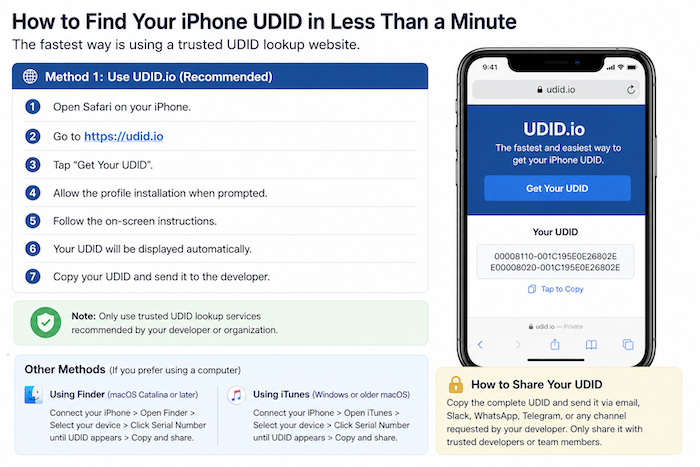
How to Find and Share Your iPhone UDID
Introduction
If a developer asks for your iPhone's UDID (Unique Device Identifier), they usually need it to register your device for beta testing or internal app distribution. The process is simple and only takes a minute.
Why Do Developers Need Your UDID?
Beta Testing: Developers use your UDID to register your iPhone for test versions of apps.
Device Identification: Every iPhone has a unique UDID, making it easy to identify authorized devices.
Security: Registering UDIDs ensures that only approved devices can install and use development builds.
Beta Testing: Developers use your UDID to register your iPhone for test versions of apps.
Device Identification: Every iPhone has a unique UDID, making it easy to identify authorized devices.
Security: Registering UDIDs ensures that only approved devices can install and use development builds.
The Fastest Way to Find Your UDID
Method 1: Use UDID.io (Recommended)
This is the easiest method and does not require a computer.
Open Safari on your iPhone.
Go to https://udid.io
Tap Get Your UDID.
Allow the profile installation when prompted.
Follow the on-screen instructions.
Your UDID will be displayed automatically.
Copy your UDID and send it to the developer.
Time required: Less than one minute.
Note: Only use trusted UDID lookup services recommended by your developer or organization.
Alternative Methods
Method 2: Using Finder (macOS Catalina or Later)
Connect your iPhone to your Mac using a USB cable.
Open Finder.
Select your iPhone from the sidebar.
Click the Serial Number field until it changes to display the UDID.
Copy the UDID and share it with your developer.
Connect your iPhone to your Mac using a USB cable.
Open Finder.
Select your iPhone from the sidebar.
Click the Serial Number field until it changes to display the UDID.
Copy the UDID and share it with your developer.
Method 3: Using iTunes (Windows or Older macOS Versions)
Connect your iPhone to your computer.
Open iTunes.
Select your device.
Click the Serial Number field until the UDID appears.
Copy the UDID.
Send it to the developer.
Connect your iPhone to your computer.
Open iTunes.
Select your device.
Click the Serial Number field until the UDID appears.
Copy the UDID.
Send it to the developer.
How to Share Your UDID
After finding your UDID:
Copy the complete UDID value.
Send it via email, Slack, WhatsApp, Telegram, or any communication channel requested by the developer.
Only share your UDID with trusted developers or team members.